
Ticker Utility Bar icon

Your markets, docked to your screen.

Ticker Utility Bar docks a bar to the edge of your screen and watches your tickers for you. It alerts you when a ticker reaches your point of interest, so you can stay focused on your chart.

Get it from Microsoft

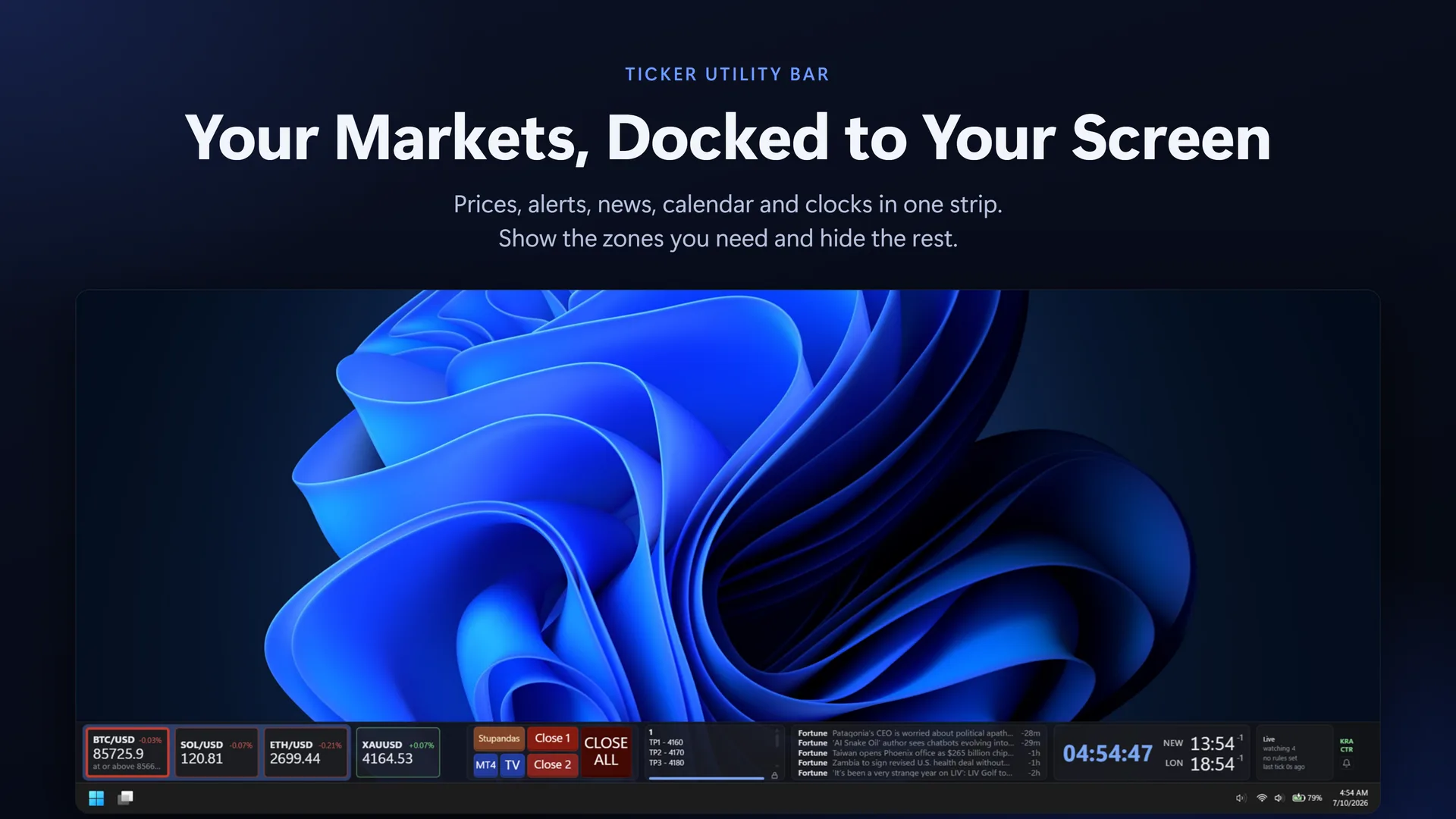
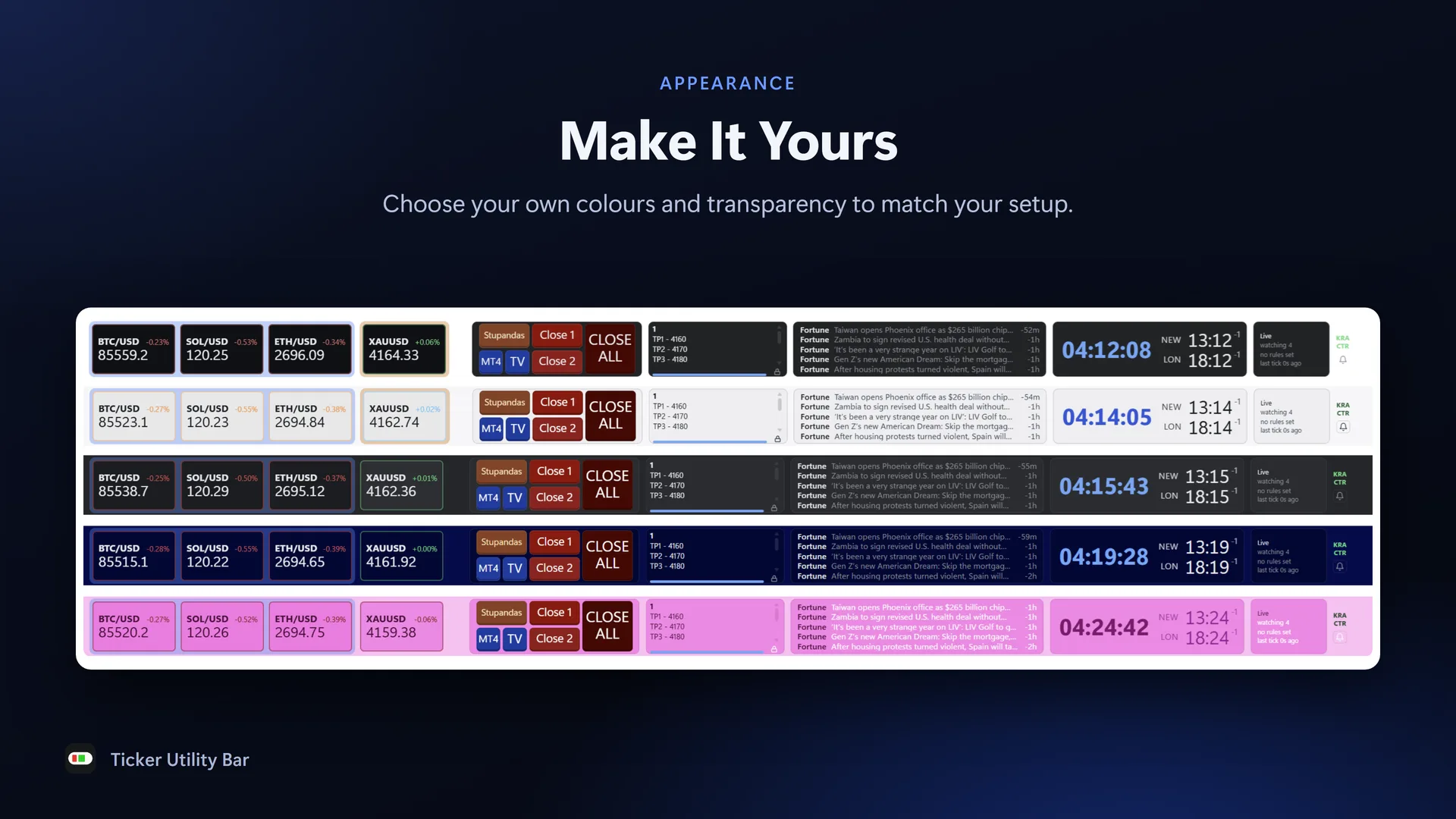
The Ticker Bar docked along the bottom of a Windows desktop: price tiles for BTC/USD, SOL/USD, ETH/USD and XAUUSD, Hotkey buttons, a note, news headlines, a countdown, two world clocks and the Connection Status corner
Docked along the bottom of the screen, above the Windows taskbar.

Features

What it watches for

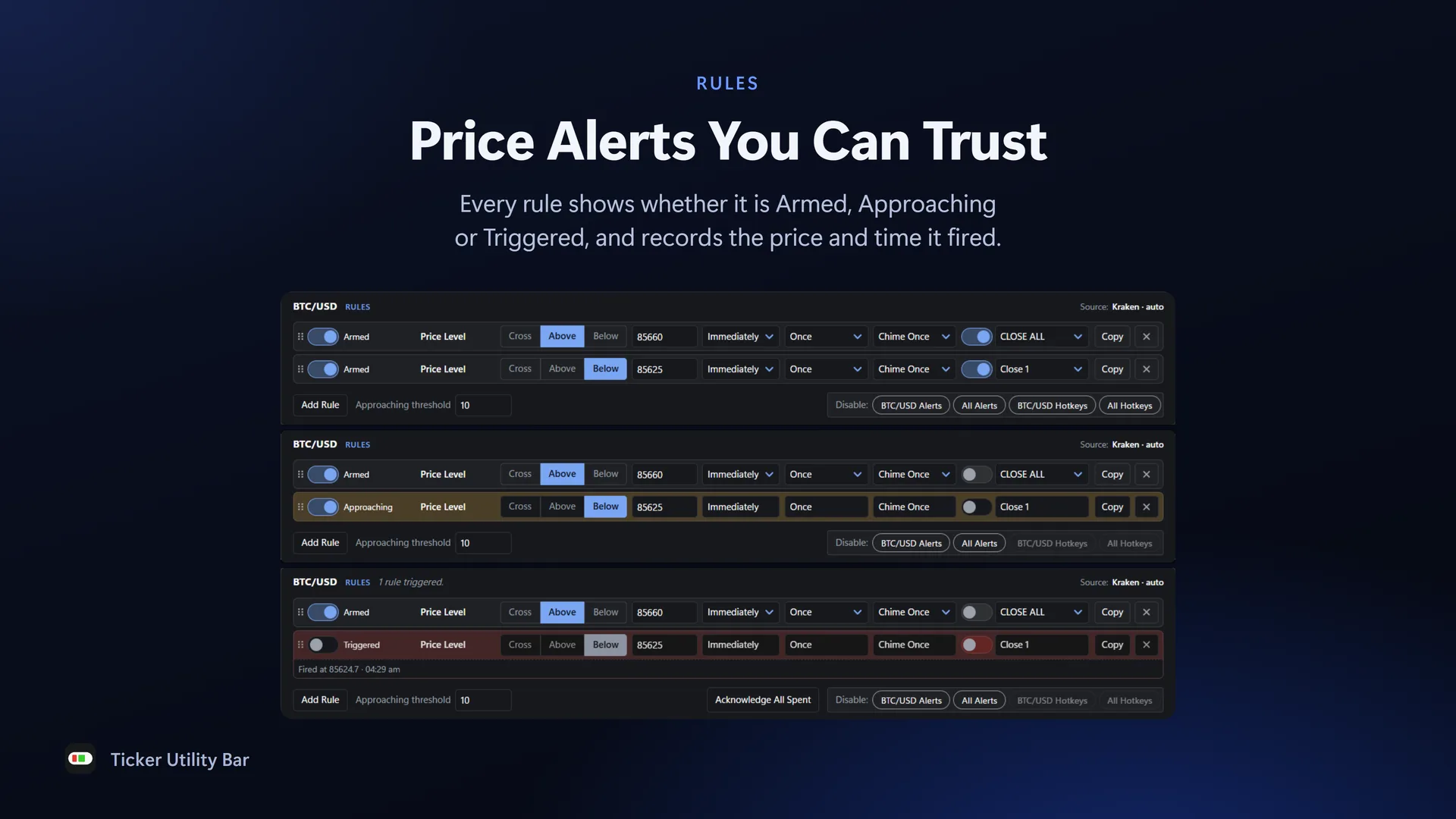
  • Price Levels you set: above, below, or each crossing
  • Price against a simple or exponential Moving Average
  • One Moving Average crossing another
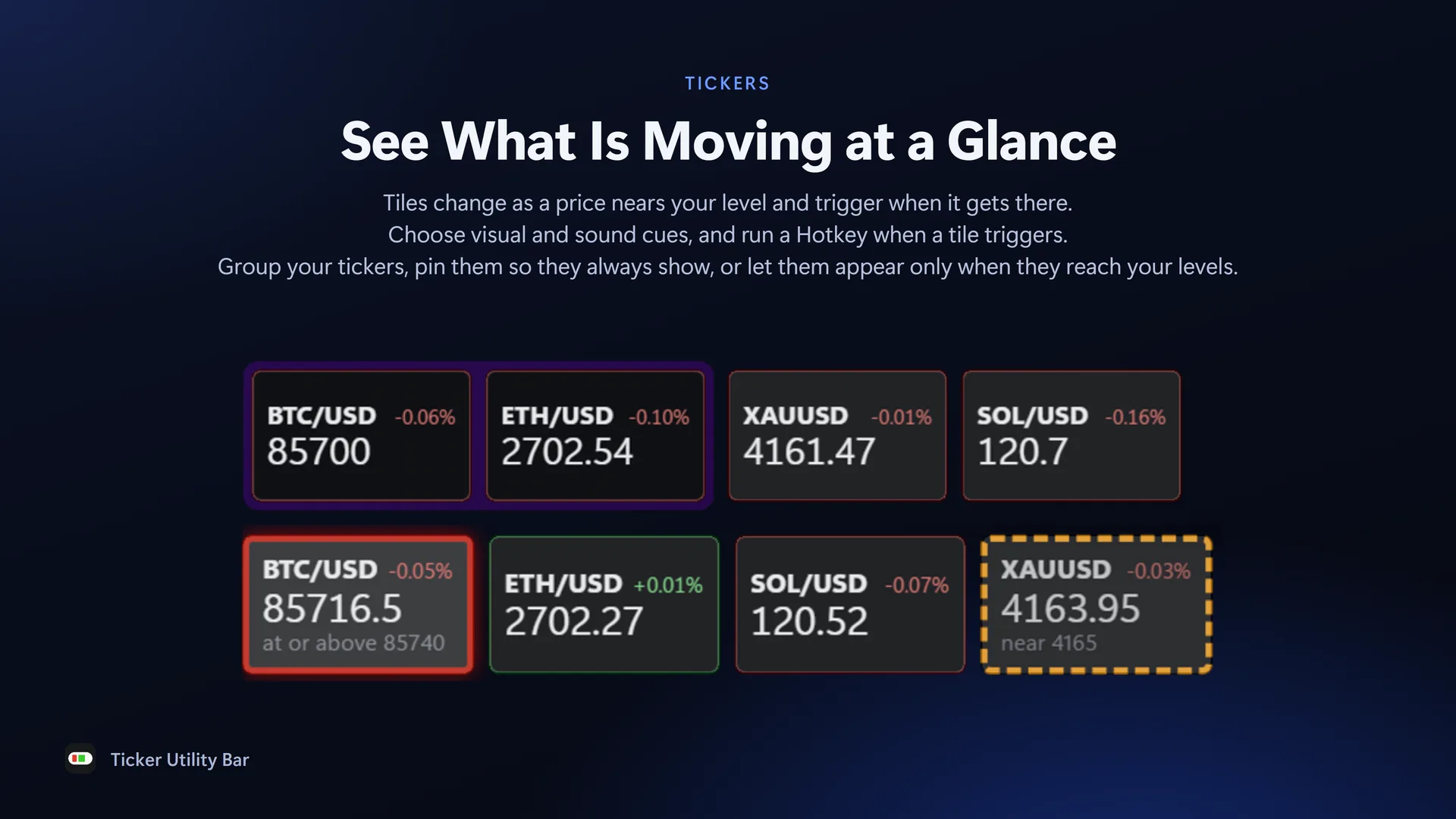
  • Tiles change as a price nears your level, with the sound and visual cues you choose
  • Run a Hotkey when a rule triggers

You can trust what it shows

  • The bar and the alerts read the same prices at the same moment - directly from the source
  • If a source is delayed or disconnected, the bar says so plainly. A dead source never looks like a quiet market.
  • Every alert is recorded with its time in the Alert History, so you can always check whether it fired

Price sources

  • Kraken: crypto prices from Kraken's public market data
  • cTrader: forex, indices and more through your own cTrader account, with a broker that offers cTrader (subscription)
  • Your credentials are kept in Windows Credential Manager and sent only to the source you connect to
  • Prices go straight from the source to your PC, never through our servers

More utility on the bar

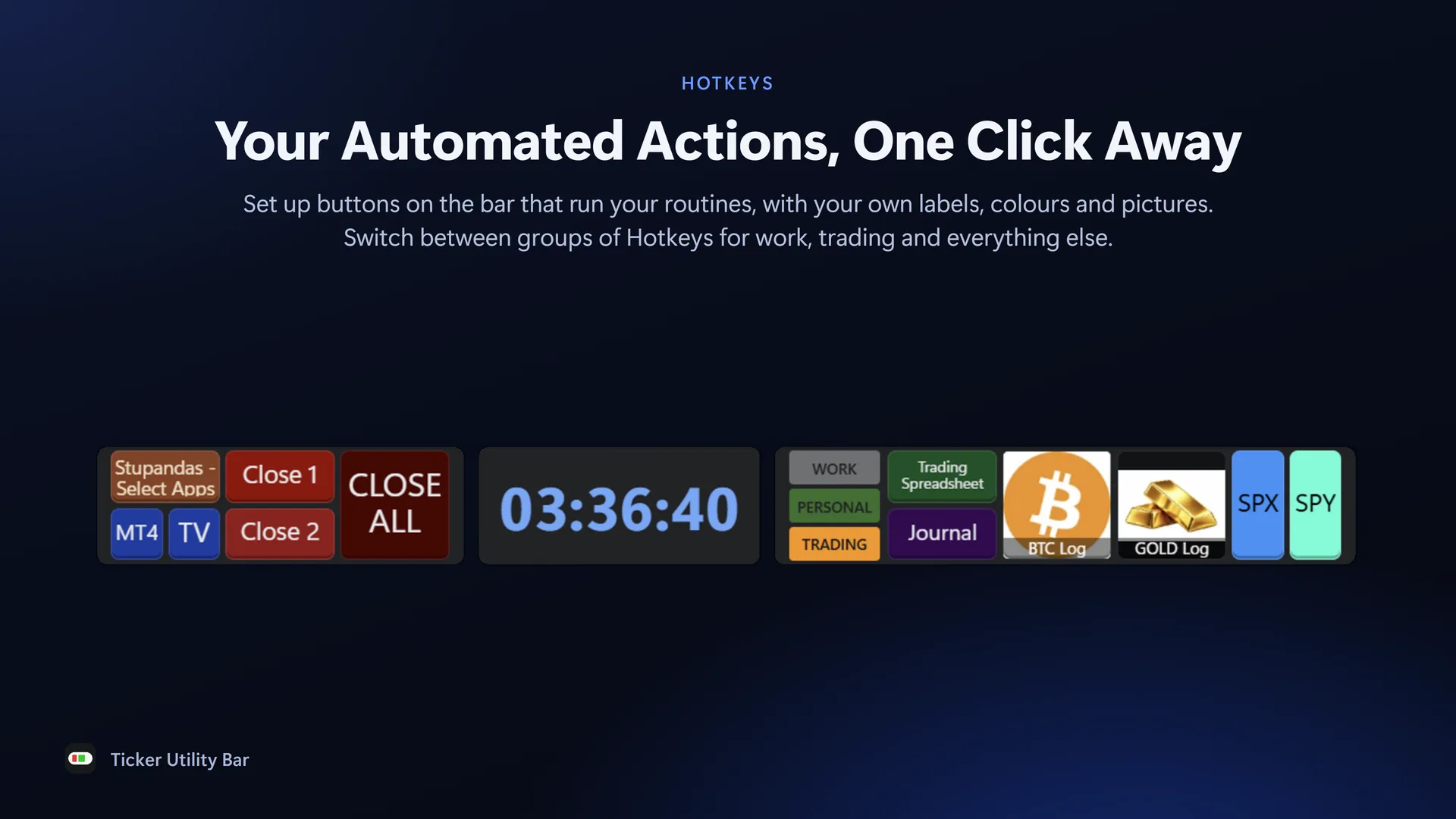
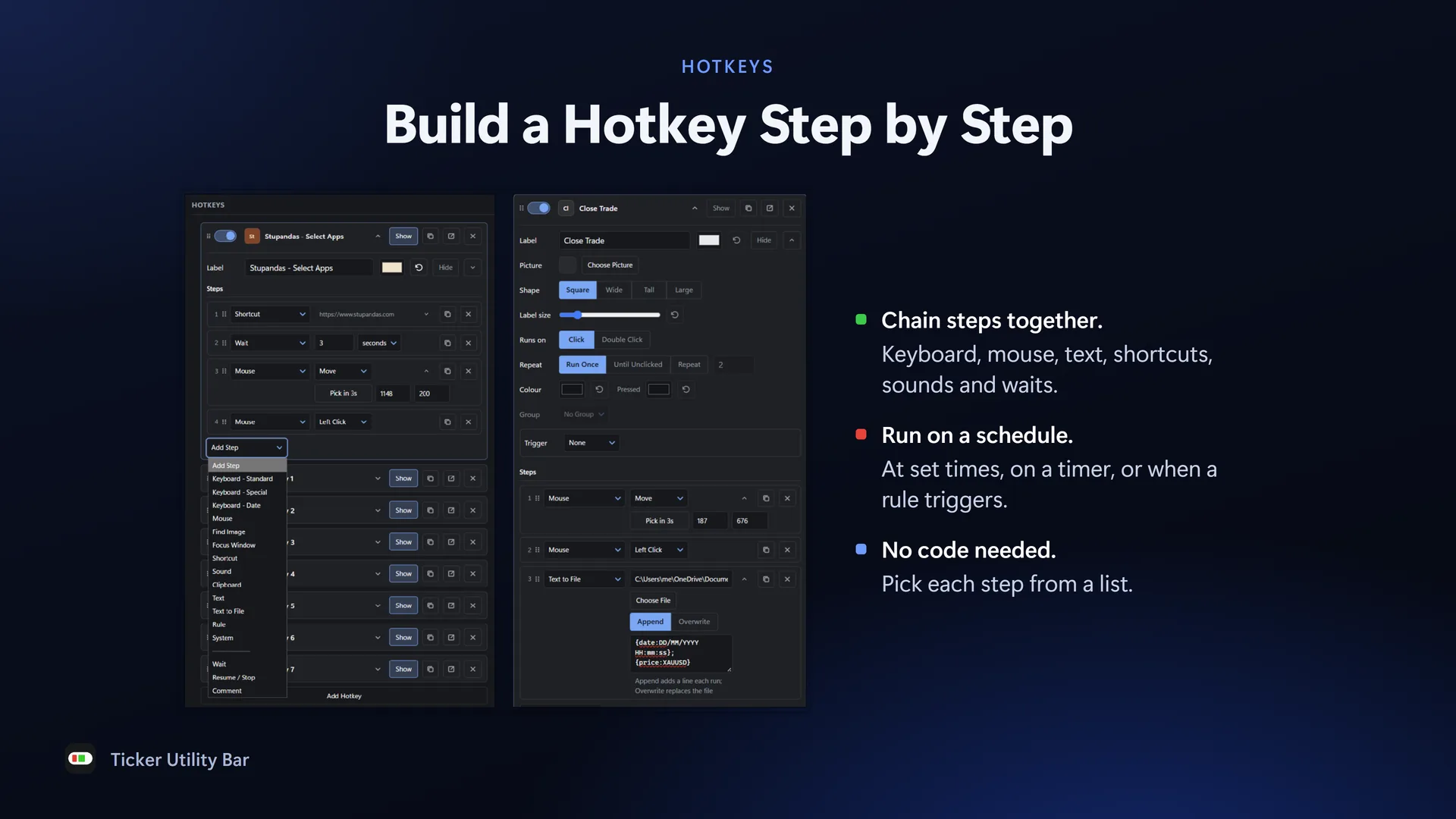
  • Hotkeys: run a sequence of steps from a button, a ticker rule or a set time
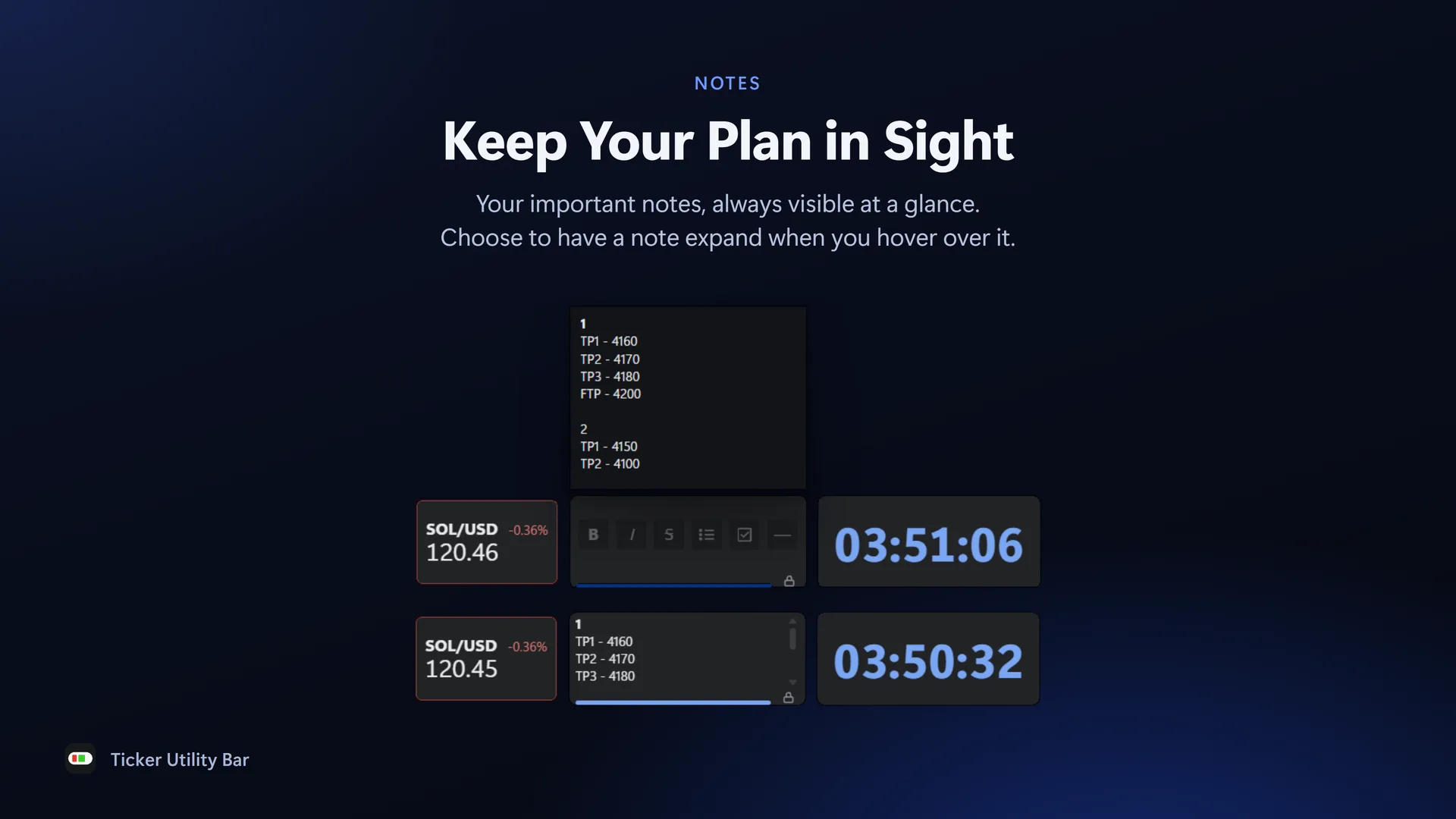
  • Notes: your plan and levels, always in view
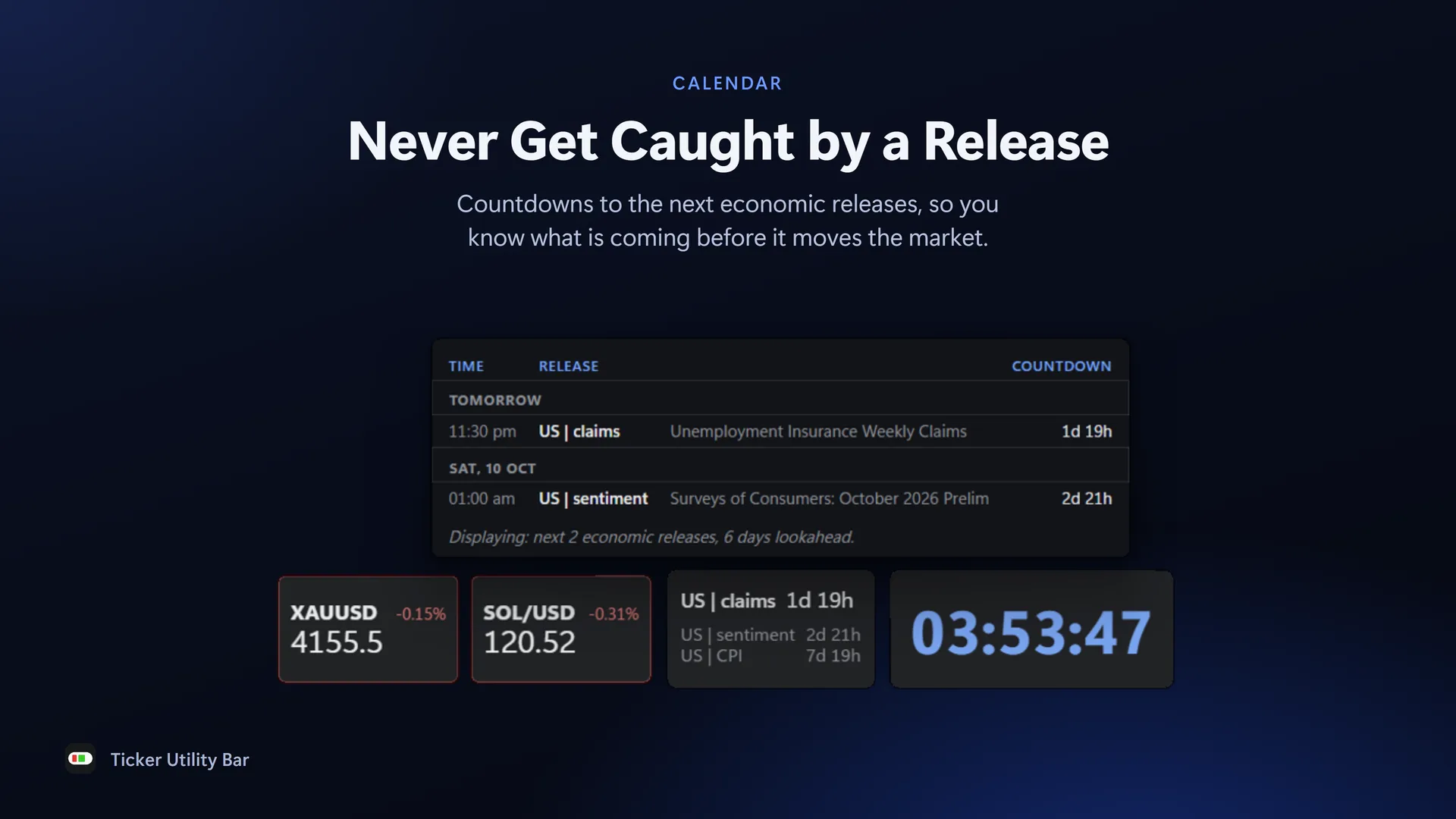
  • The Calendar: countdowns and warnings before economic releases
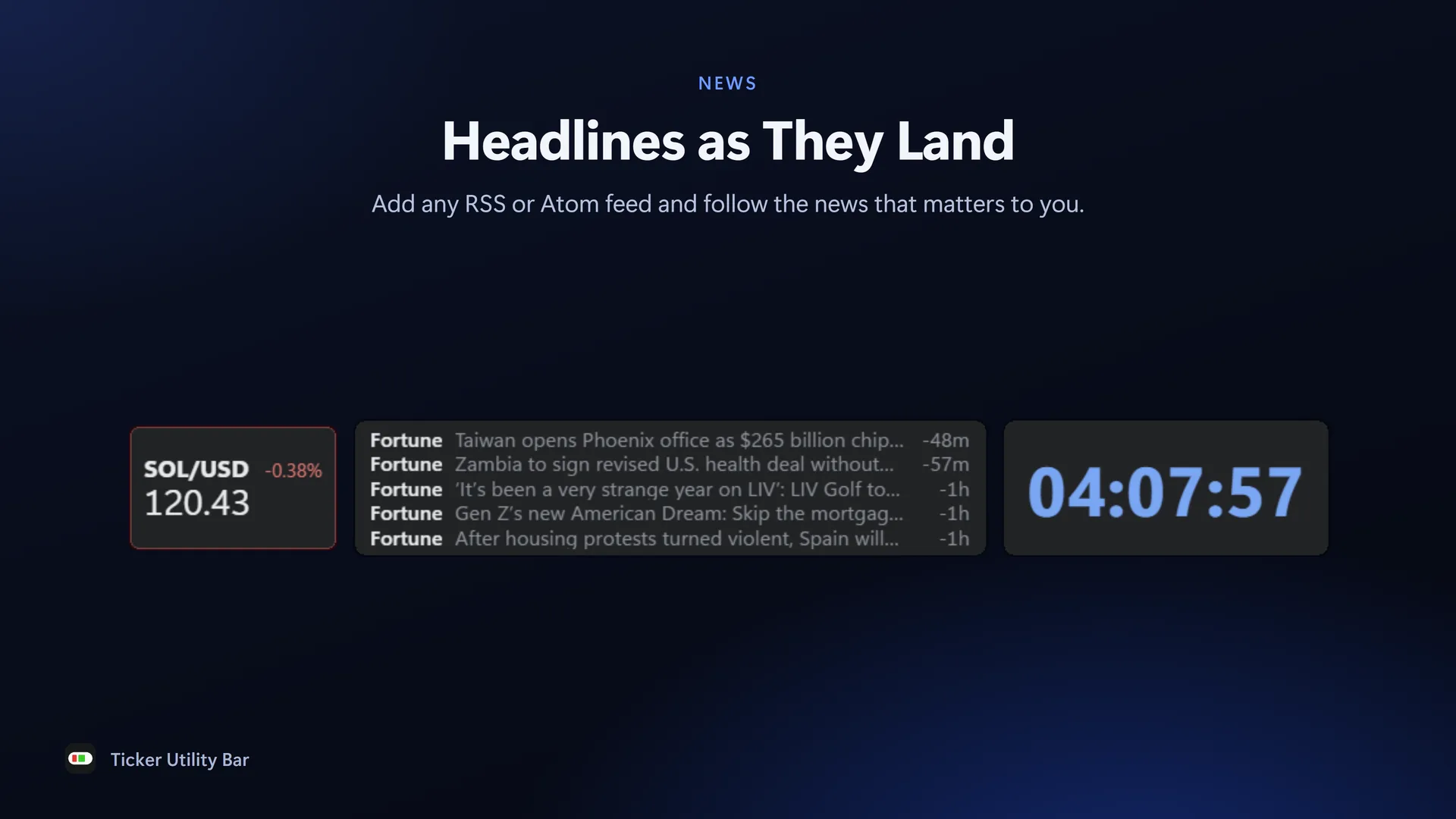
  • News: any RSS or Atom feed you choose
  • Clocks for the markets you trade
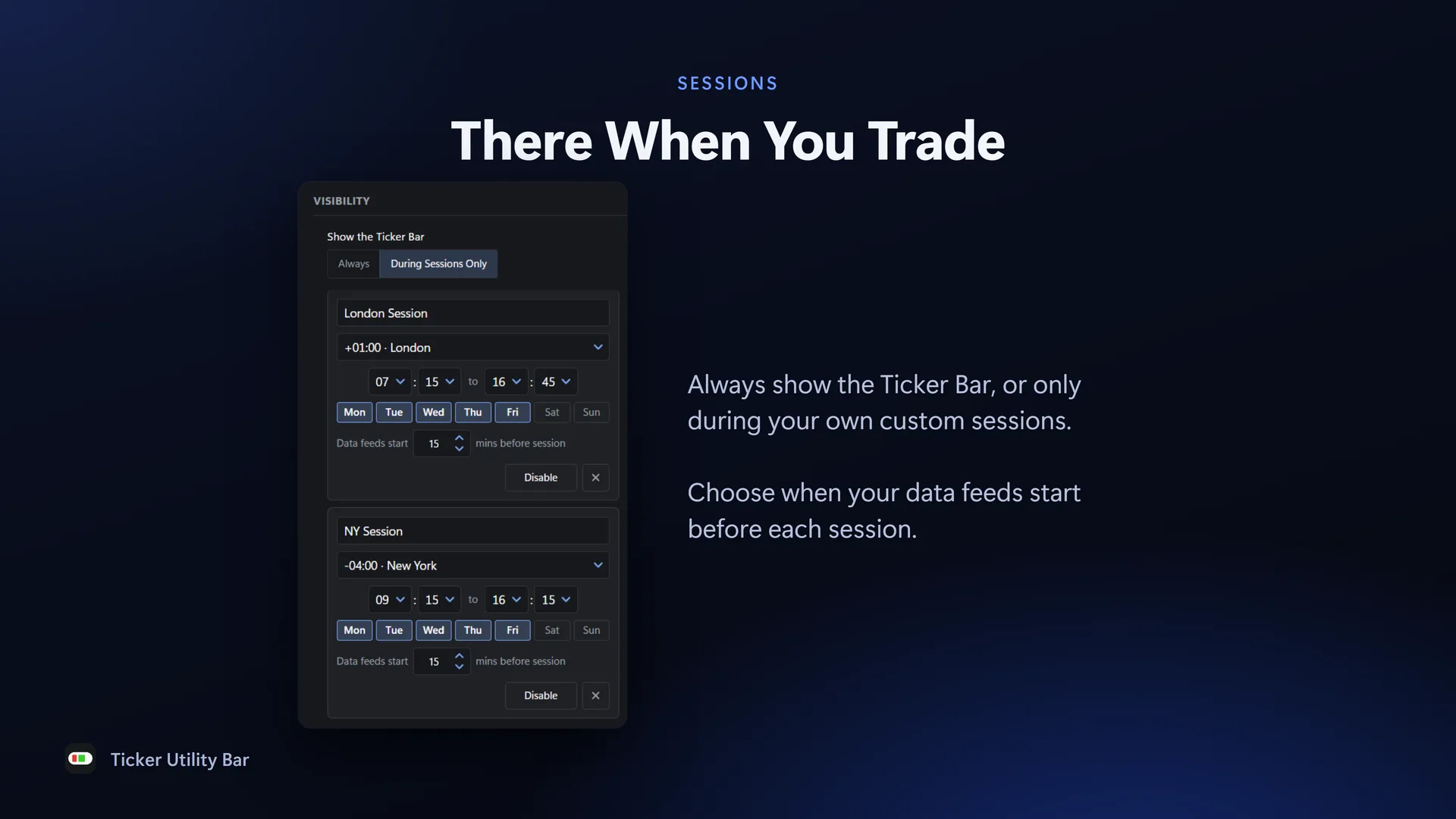
  • Active Sessions: show the bar always, or only while you trade

Pricing

Free

$0

What's included:

  • Tickers on your watchlist, within each source's limits
  • Kraken crypto prices
  • 5 Price Rules across your watchlist Price points, Simple/Exponential Moving Average, MA Cross rules count in the same 5
  • 6 Hotkeys
  • Notes 2 tabs of 200 characters
  • 1 RSS or Atom news feed
  • Clocks and Active Sessions

If a subscription ends, nothing is deleted. Anything past the free limits is kept and shown greyed out, and comes back if you subscribe again.

Kraken and cTrader are trademarks of their respective owners. Ticker Utility Bar is not affiliated with or endorsed by Kraken or Spotware.

FAQs

The Bar

Ticker Utility Bar is running, but the bar is not on screen.

The bar shows either always, or only during the sessions you set. If it is set to sessions and it is outside your session times, the bar stays hidden until the next session starts. To show it now, right-click the Ticker Utility Bar icon in the system tray and select Always Show.

My computer freezes for a few seconds when the bar opens and closes.

When the bar opens, Windows makes room for it at the edge of the screen, and when it closes, Windows gives that space back. Each time, Windows checks in with every open program before carrying on, and a slow program can hold everything up for a few seconds. If this bothers you, set the bar to float instead: Settings, Ticker Bar, then set Position to Floating. A floating bar doesn't take space from the screen, so Windows has nothing to rearrange.

Hotkeys

Do Hotkeys run while my PC is locked?

No. A locked or sleeping PC cannot reliably carry out steps such as clicking, typing or focusing a window, so a Hotkey triggered then would likely fail part way. Hotkeys resume their previous state when the PC is unlocked. They do not try to catch up on the runs they missed; each one is marked on the Hotkey as held, or as missed if the PC was asleep, so you can see it did not run.

Alerts

Do alerts fire while my PC is locked?

Yes. Rules keep watching while Windows is locked, and an alert fires at the time its condition is met. When your PC is unlocked, the bar shows what fired, and the Alert History lists every alert with the time it fired. A Hotkey set to run from a rule does not run while the PC is locked, and is not run later.

What happens when my PC sleeps?

Sleep is treated as if the app is closed. Nothing runs while the PC sleeps, so no alerts fire and no Hotkeys run. When it wakes, a rule whose condition is now met fires once, marked as having been met while the bar was not watching, because it cannot say when. Its Hotkey does not run, and is switched off, as price may have moved on.

Connections

Authorise for cTrader timed out and the connection still says Not authorised. What do I do?

Your browser most likely blocked part of the cTrader sign-in. Authorise opens cTrader's sign-in page in your default browser. If the browser blocks a pop-up or asks permission to continue, the sign-in cannot finish, and Ticker Utility Bar waits until it times out. Select Authorise again, and if your browser shows a pop-up warning or asks you to allow or approve anything, allow it.

Why can't I choose a live or demo account?

The account list appears only after cTrader authorisation completes. If authorisation timed out, see the answer above. Once it completes, choose the live or demo account on Settings - Connections. A free demo account works.